ScoreCue

Official user guide

Get started with ScoreCue

Import a PDF score, set its timing, and move through the music without taking your hands off your instrument.
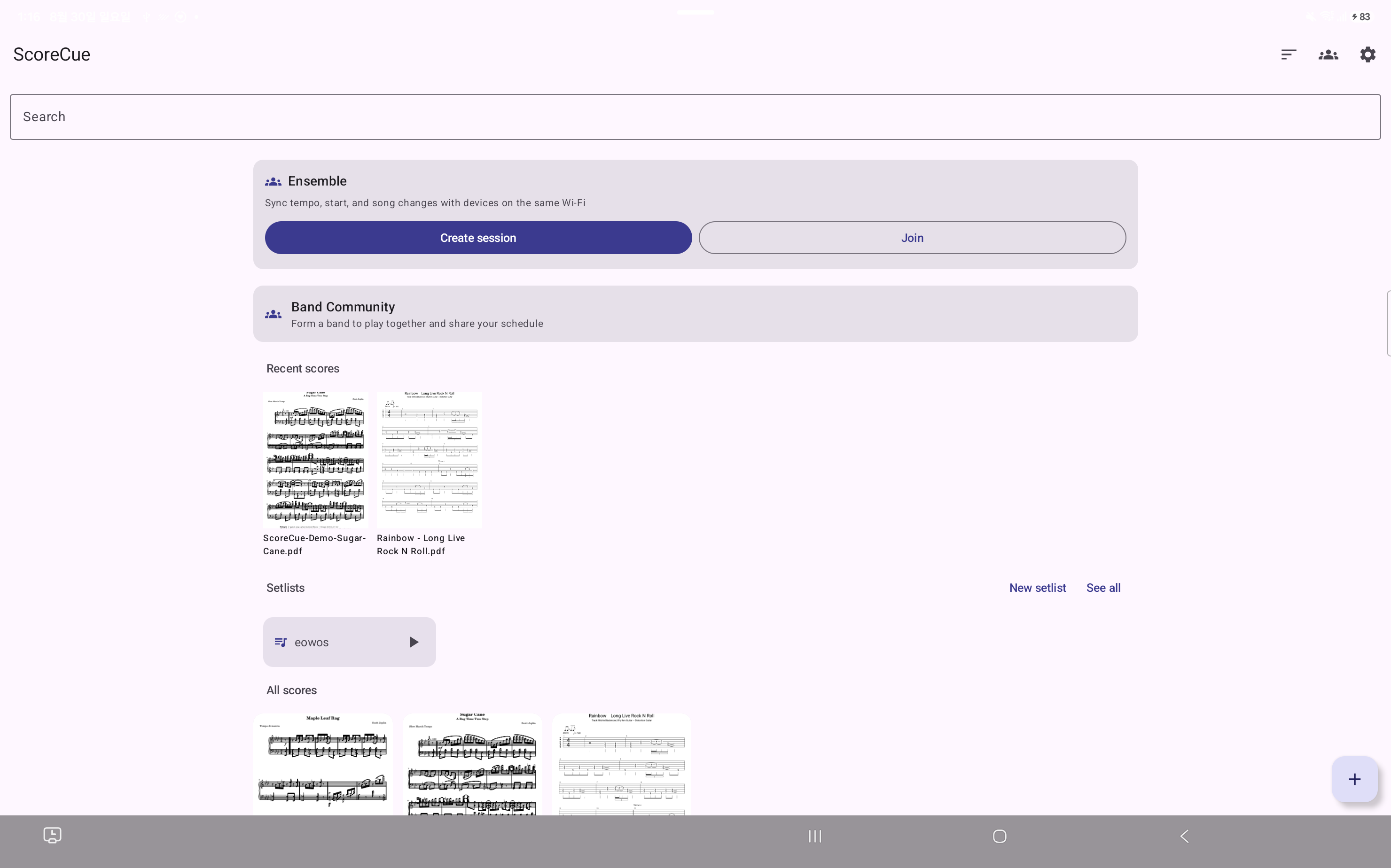
ScoreCue Android library in English

01

Start in four steps

1

Import a score

Tap + and choose a PDF stored on your device.

2

Create timing

Analyze the score automatically or record bar timing yourself.

3

Start playing

Press Play and the score advances at the tempo you set.

4

Play together

Create or join an Ensemble session to sync progress across devices. One account can occupy only one seat in a session.

02 · Library

Keep every score in one place

Find recent scores, setlists, and your full library from the home screen.

  • Import a PDF with the + button
  • Find music quickly with search and sorting
  • Build setlists in performance order
ScoreCue Android library in English
Android · Keep every score in one place

03 · Viewer

Nothing but the score while you play

The viewer gives your music the full screen. Use the bottom controls for playback, navigation, repeat, and more.
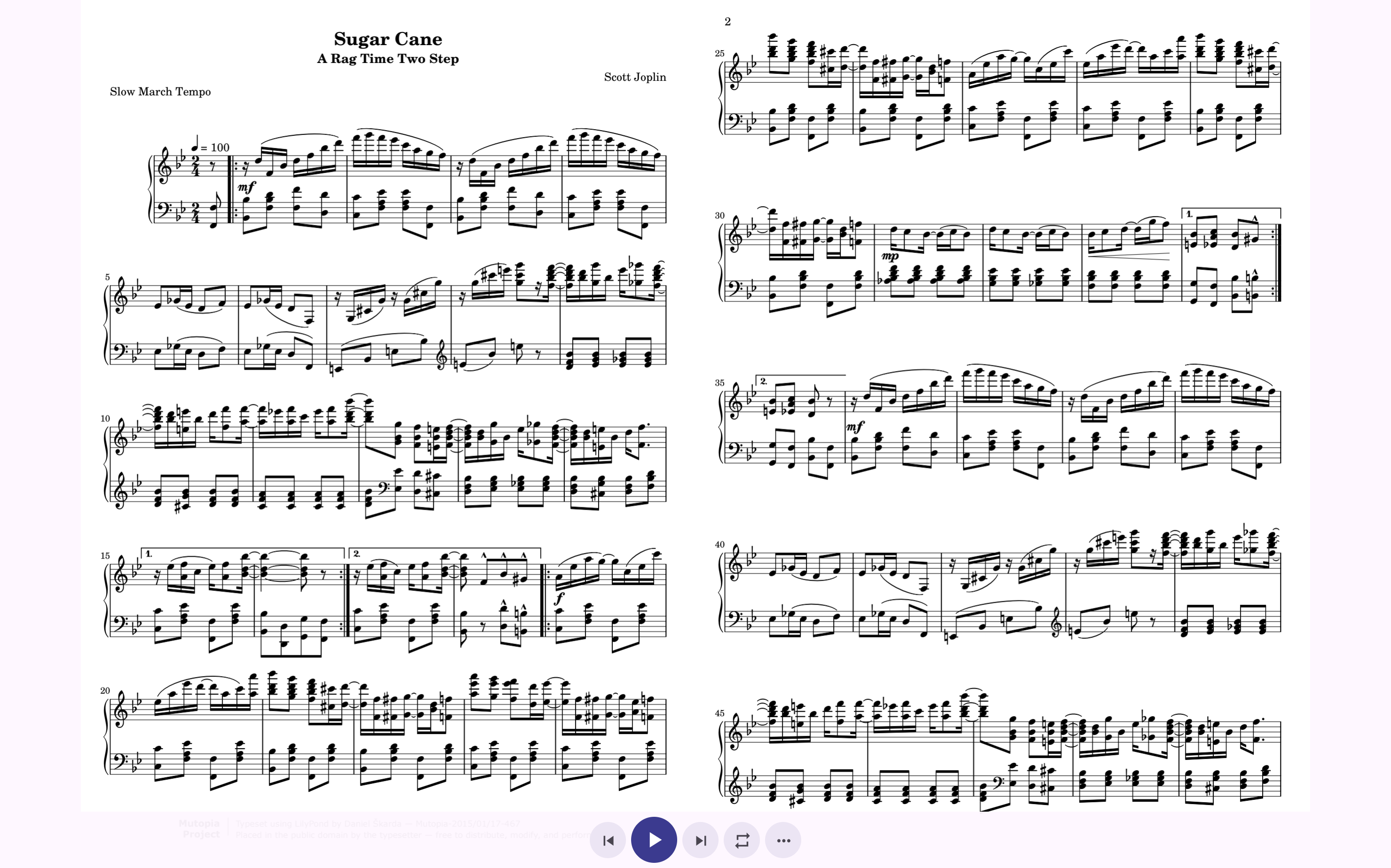
  • Start automatic page turns with Play
  • Tap the score to show or hide controls
  • Open More for annotation, timing, and metronome tools
ScoreCue Android score viewer
Android · Nothing but the score while you play

04 · Settings

Fit ScoreCue to the way you play

Configure pedal keys, count-in, screen behavior, data, and account settings in one place.
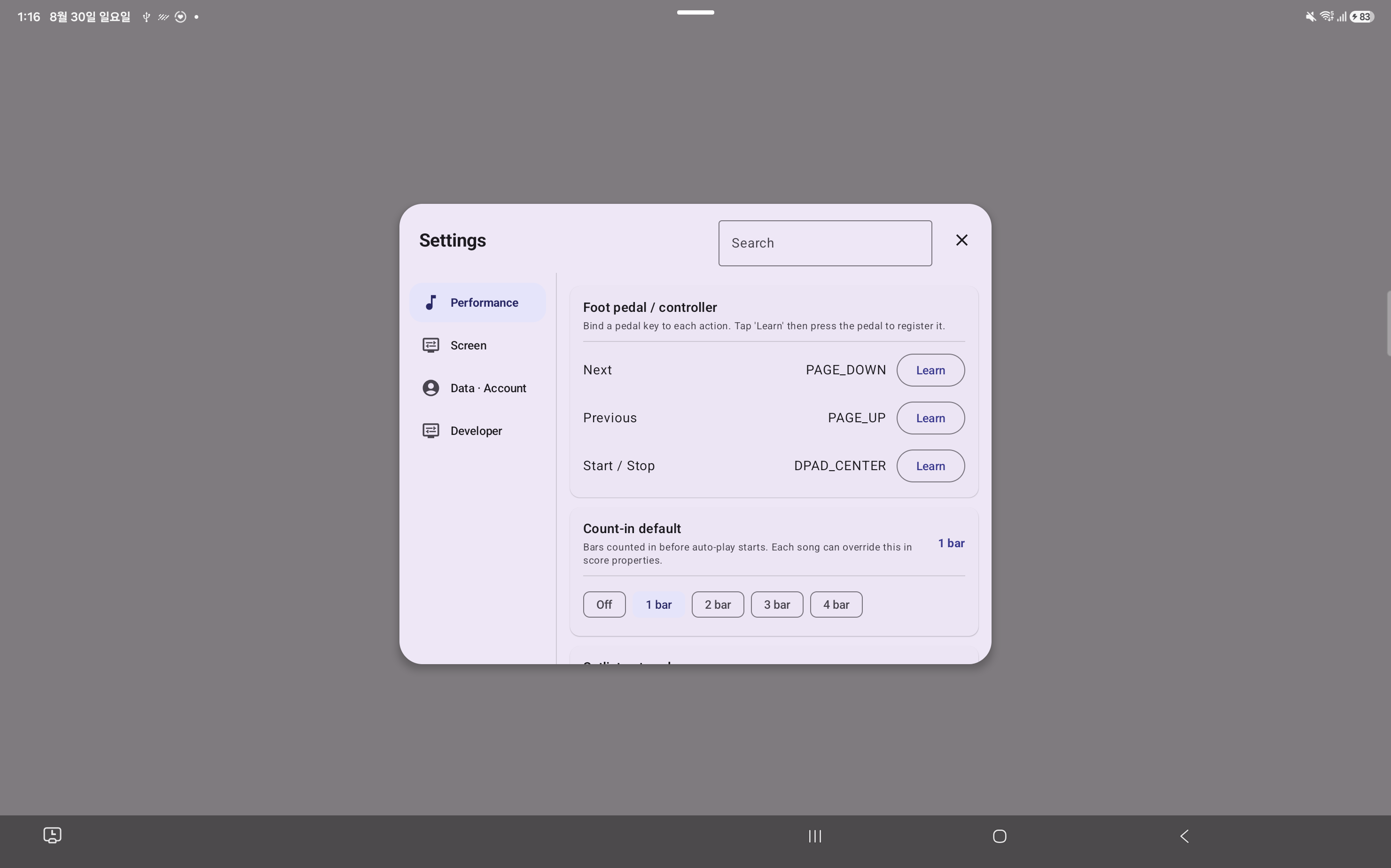
  • Teach pedal keys for next, previous, and start/stop
  • Choose the count-in before auto-play
  • Adjust screen-on and display options
ScoreCue Android settings in English
Android · Fit ScoreCue to the way you play

05

What changes on Android and iPad

Core features and file formats are shared; navigation follows each platform’s conventions.

Android

Large-screen layout and open file access

Android uses a card-based library and a tablet-friendly settings panel.

  • Open the system file picker from +
  • Use Android Back and the system share sheet
  • Teach Bluetooth pedal keys in Settings
iOS · iPadOS

iPad sidebar and Apple Pencil

iPad uses a native sidebar, the Files app, and keyboard shortcuts.

  • Import PDFs through Files
  • Annotate naturally with Apple Pencil
  • Use ⌘S, ⌘I, ⌘E, and ⌘L shortcuts